Rosetone

Tips & FAQ

Tips

Useful keyboard shortcuts

The reader is fully keyboard-driven. This is just a selection. The full list of defaults lives in Rosetone → Settings → Shortcuts, where every one of them can be reassigned.

Turning pages

Previous / next page
Turn one page at a time (in a two-page spread)

Reading view

Enter / exit full screen
F
Single page ↔ two-page spread
S
Right-to-left ↔ left-to-right
R
Vertical Scroll mode
T
Show or hide image metadata
I
Rotate left / right
[]

Books

Next / previous book in the folder
Next / previous recent book
][

Open files directly from Finder

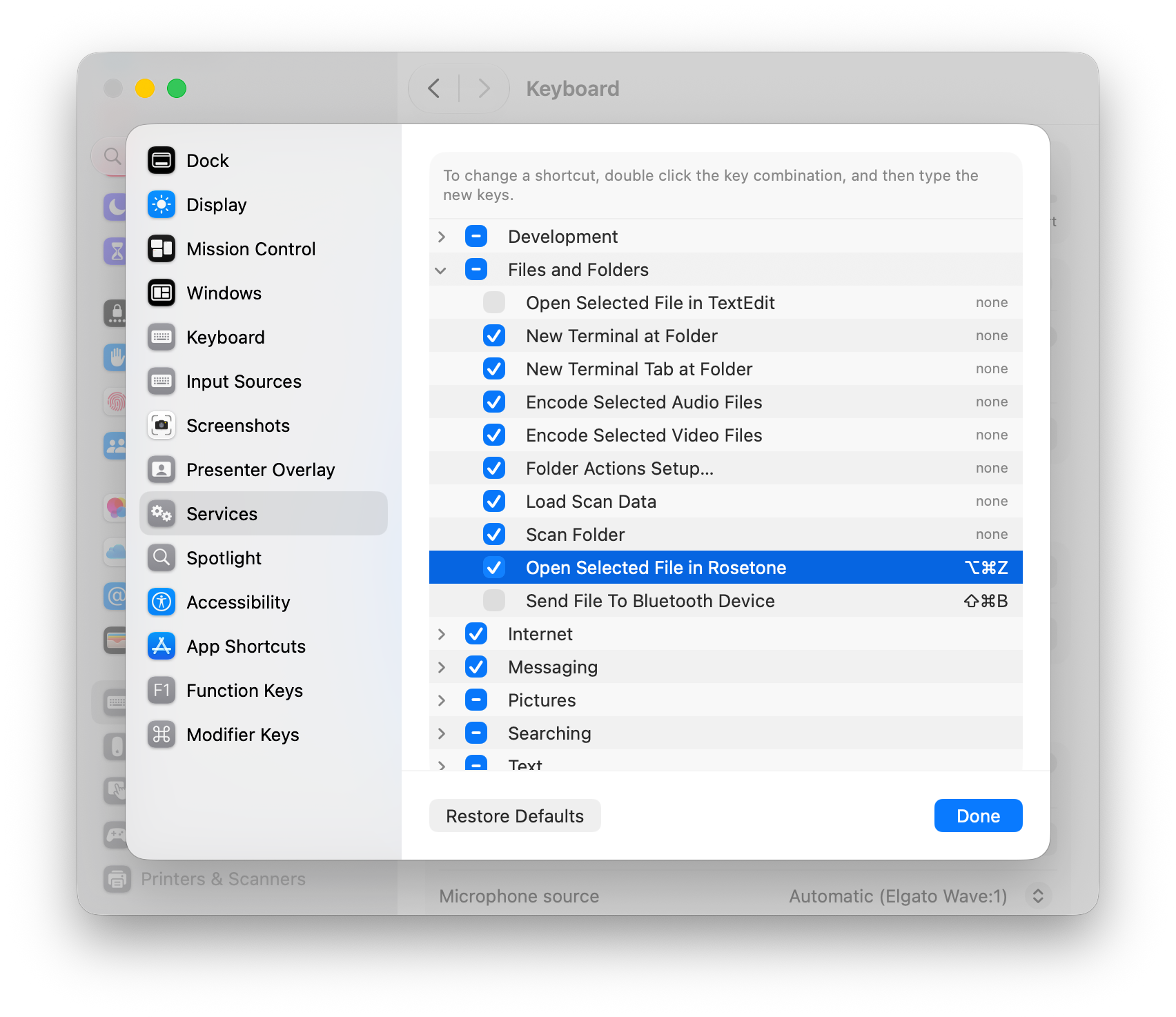
Rosetone adds a Finder service, so you can open the selected files with a single keystroke. Open System Settings → Keyboard → Keyboard Shortcuts → Services, find Open Selected File in Rosetone under Files and Folders, and assign a shortcut such as R. Then select files in Finder and press it.

The Services list in System Settings with “Open Selected File in Rosetone” selected

FAQ

Are future updates free?

Yes. Rosetone for macOS updates itself automatically, and every update is free forever.

Does Rosetone collect any data?

No. Rosetone collects no data at all. The only internet request it makes is the auto-update check, and you can turn that off in the settings.

On how many Macs can I install Rosetone?

As many as you like, as long as they are your own Macs. One license, one user.